
If you want to set up the connection between Eduframe and Canvas, you can find the information here.
(Setting up the connection is not possible without Drieam involvement and is incorporated in the implementation proces).
As part of the connection between Eduframe and Canvas, you can set up a SSO (single sign on). This means that the credentials created for Eduframe will also be used for logging in for Canvas. The set up will be done within the implementation together with a Drieam consultant. Read more about it in the article.
Canvas settings in Eduframe
After setting up the Eduframe/Canvas connection, you can configure the Canvas plugin.
- Login as admin in Eduframe
- Go to Settings
- Click on 'Plugins'
- Click on 'Canvas'
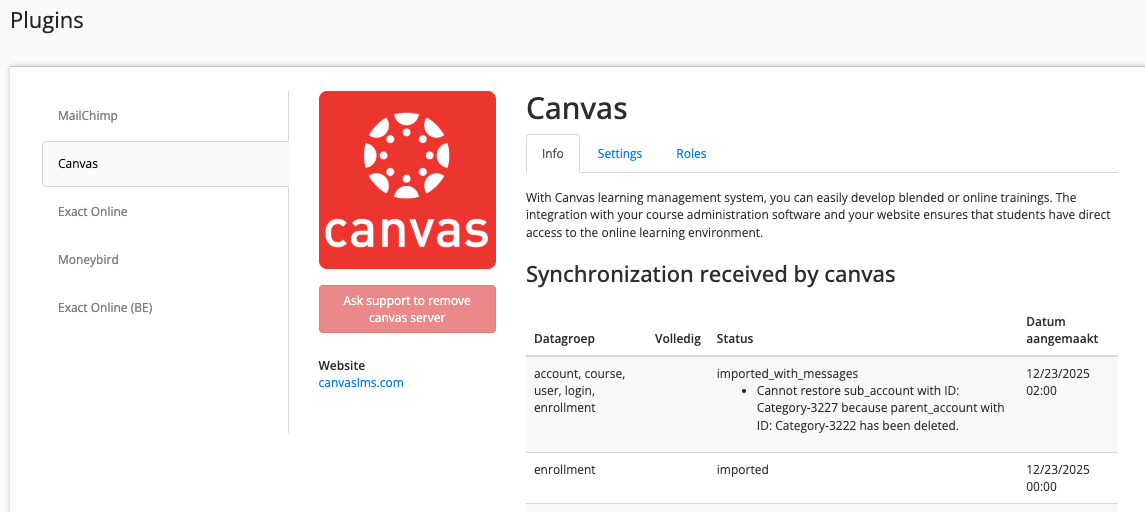
Settings
Course name
Eduframe will push the name of the course template and other things through to Canvas. In the plugin settings tab you can define what will be part of the name of the planned course. You can choose between or additional: startdate (multiple variants), location, variant, course name (course template name)
Checkboxes
There are 4 other options you can enable or disable:
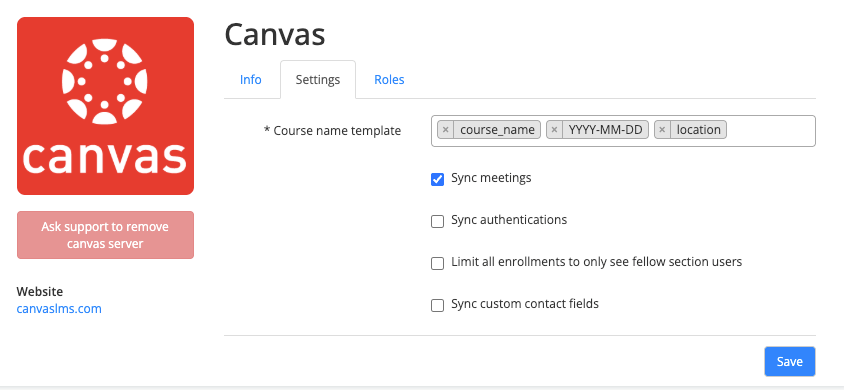
1. Sync meetings: synchronises Eduframe meetings to Canvas
Note: Syncing meeting does not include subevents)
2. Sync authentications: synchronises non Eduframe authentications to Canvas (i.e. OpenIDConnect). This enables you to setup non Eduframe SSO methods
3. Limit all enrollments to only see fellow section users: Limits users to only communicate with users in their own section. This will result in Eduframe only synchronizing users to the main-section, meaning you can make separate sections to limit visibility.
4. Sync custom contact fields: allows selecting one or several custom contact fields for synchronization to Canvas. Custom contact fields from Eduframe can be used for integrations in Canvas. Like PeerConnect or QualtricsLTI.
Roles
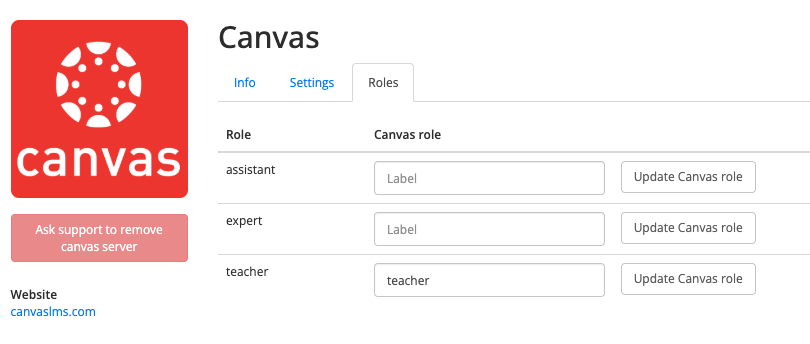
Next to the general information you can also do a hard sync or you can define the course names and configure teacher roles.
-
Teacher Role (Default)
In Eduframe you have a standard teacher role. This role is default connected to the teacher role in Canvas. You need to have the 'teacher roles' feature activated in your Eduframe environment to be able to use this. If you want to create different teacher roles in Canvas, you can also enable this in Eduframe. See the next part how to set this up: -
Teacher Roles
In Eduframe you can create teacher roles. They will have the same permissions, but another name. You can find more about that in this Teacher Roles article. The Eduframe teacher roles can be connected to custom roles in Canvas. The course roles that you want to fill in here and connect with Eduframe must have the exact same name as in Canvas is registered. You can find this information in Canvas as an admin under Permissions.
When they are filled in and saved, a teacher role in Eduframe is connected to a role in Canvas automatically.
Note: When mapping Eduframe roles to Canvas roles you need to map the Eduframe role to the 'technical Canvas role name'. This applies to the following roles pre-built in Canvas.
Technical Canvas role name Visible role name in Canvas observer Observer ta TA designer Course Designer teacher Teacher
Sync information from Eduframe to Canvas
What information will sync from Eduframe to Canvas?
| Eduframe | Canvas |
|---|---|
| Category | Subaccount |
| Subcategory | Sub-subaccount |
| Course edition | Course - Creation of empty course shell - Name defined within Eduframe (Plugin Canvas) |
| Meetings | Meetings |
| Enrollments (Teacher/Participants - Students) | Enrollments (Teacher/Participants - Students) |

What happens after changes in Eduframe to Canvas?
|
Eduframe |
Canvas |
Condition |
DIRECT |
OVER-NIGHT |
|
Course |
||||
|
Create new course edition |
New course Canvas
*Canvas Course code will be de code from the course template of Eduframe |
Synchronized to Canvas button is enabled in Eduframe |
✅ |
|
|
Button ‘Synchronized to Canvas' disabled and save course |
Course gets status 'deleted' and is not visible in Canvas anymore if there were no content and enrollments yet. |
✅ |
||
|
Change name course template or code on course template in Eduframe |
In Canvas the course name or code will change. |
✅ |
||
|
Change startdate, location or variant |
In Canvas the course name will change. |
After saving the course in Eduframe |
✅ |
|
|
Create new meeting |
New meeting in course agenda of the canvas course. * Title is name meeting * Date is date meeting * Time is time meeting |
* After saving a meeting * After manually click on save a course in the tab 'general' (direct) * Otherwise the meeting will be synced overnight. |
✅ |
|
|
Change meeting |
Change meeting in Canvas course agenda |
* After saving a meeting * After manually click on save a course in the tab 'general' (direct) * Otherwise the meeting will be synced overnight |
✅ |
|
|
Participants (students) |
||||
| - | All users in Eduframe will be synced to Canvas | Setup sync | ✅ | |
|
Participant has a confirmed enrollment |
Course will be visible in Canvas |
Enrollment confirmed |
✅ |
|
|
Access to Canvas course |
* Enrollment confirmed * Access Canvas when startdate is passed * Course is published in Canvas |
✅ |
|
|
|
No more access to Canvas course because the fixed course end date is passed or the flexible course is closed |
* End date is passed for access Canvas * Flexible course is closed * Enrollment is concluded in Canvas |
✅ |
||
|
Enrollment of participant is canceled. |
Enrollment in Canvas gets the status 'inactive' and the participant no longer sees the course in Canvas (and Eduframe student portal). |
Enrollment gets status 'canceled' in Eduframe |
✅ |
|
| Enrollment of participant is removed | Enrollment in Canvas is canceled and the participant no longer sees the course in Canvas (and Eduframe student portal) | Enrollments get removed from Eduframe |
✅
|
|
|
Changes to participant data, e.g. name |
✅* |
|||
| Delete participant | Delete participant from Eduframe | Participant is soft-deleted. For hard-delete, contact Drieam or Instructure support. |
✅
|
|
|
Teachers |
||||
|
Add teacher at course level in role |
Acces to Canvas course |
Eduframe teacher role must be linked to the Canvas teacher role (See Plugin Canvas) |
✅ |
|
|
Delete teacher at course level |
No acces to Canvas course |
|
✅ |
|
|
Plan teacher at meeting/ subevent level |
Acces to Canvas course |
Eduframe teacher role must be linked to the Canvas teacher role (See Plugin Canvas) |
✅ |
|
|
Delete teacher at meeting/ subevent level |
No acces to Canvas course |
✅ |
||
| Change teacher to active | Access to Canvas courses | Teacher active status is updated | ✅ | |
| Change teacher to inactive | No access to Canvas courses | Teacher active status is updated | ✅ | |
|
Calendar feed |
||||
|
Synchronization with own agenda (calendar feed) |
The feed is updated immediately, but it depends on the calendar application how often the feed data is actually retrieved. For some clients you can set that (Mac) for others (Google) you can't, in the case of Google changes can take up to 24 hours. |
✅ |
||
Note: - When you change user data manually in Canvas, Eduframe will overwrite this after the next overnight sync. - Only meetings synchronize to Canvas. Subevents do not synchronize to Canvas.
Course completion in Canvas to Eduframe
In Eduframe, courses can be completed by the integration between Canvas and Eduframe. When the student completes all module requirements of a course in Canvas, this can be a trigger to Eduframe to complete the course.
Read more about this in this article.
How can you merge double users in Canvas?
Before the Eduframe (and Canvas) implementation you might already have an account in Canvas. After connecting Eduframe to Canvas, there will be a new user coming from Eduframe to Canvas. That would mean that you have two users. You can merge these users in Canvas.
Note: - Eduframe will still be able to find the user after two users a merged in Canvas. Eduframe finds the user using an LTI ID, when merging users in Canvas the resulting user will have two LTI ID's. - When you merge users in Eduframe, users will also merge in Canvas. Read more about this in the merge duplicate contacts article.
FAQ Eduframe-Canvas integration
Can Eduframe create sections in Canvas courses?
No, in Eduframe there are no sections within a course and therefore can not be synced to Canvas.
Next to that it is possible to use sections in Canvas.
In Canvas there is always one section per course. When Eduframe is creating a course and pushing enrollments to Canvas, this will be in that section (course section). This section have to stay as it is.
If you want to create more sections, see here you possibilities:
- Adding manually extra section(s) in Canvas course.
- Adding extra section(s) via sis import (csv) in Canvas course
How can you use Terms in Canvas when Eduframe and Canvas are connected?
Terms (Canvas functionality) are intended to cluster courses chronologically. Terms can only be defined in Canvas on the root account; manually, via SIS imports or API. Terms are something that can be arranged in Canvas. Eduframe pushes the default/standard term through in Canvas courses.
Eduframe will fill in the course start and end date within a Canvas course and therefor makes use of the course dates.
If you want to use Terms in Canvas, this is possible with the following use case: In Canvas you can filter by terms in all course overviews.
There are options to connect other terms as well:
- Adjust manually in Canvas
- SIS import
- API calls bulk in Canvas

Important: - The participation within course settings in Canvas, should stay on Course. - Changing the participation to 'term' will ALWAYS be synced back to 'course'.
How can I sync grades from Canvas back to Eduframe?
You can sync grades back from Canvas to Eduframe with the GradeSync LTI. Read more about it in this article.

Click here for other Articles around the Settings page in Eduframe

Click here if you have any questions for support.