
The Account Settings menu allows you to define your organization's global identity and compliance standards within Eduframe. These settings directly influence the student experience, legal transparency, and data tracking.
As an admin you can configure the settings in Eduframe. Click on your Name and on Settings to get to the settings overview. You will see an overview of settings you can configure within Eduframe.
Core Business & Legal Info
- Active Country: Specify the primary country of operation for your Eduframe instance.
- Website URL: Link your official organization website.
- Terms & Conditions: Provide a direct URL to your terms and conditions; this is critical for student signup compliance.
- Privacy Statement: Toggle between a Default privacy statement or link a Custom privacy statement to remain compliant with data protection regulations.
Brand Identity & Analytics
- Visual Branding: Define your Main and Secondary colors using hex codes (e.g., #E60E30) to ensure a consistent brand experience across signup forms and portals.
Read more about it here: How to set up your brand identity in Eduframe? - Analytics Integration: Input your Google Analytics Tag or Google Tag Manager Tag to monitor traffic on your signup forms. Read more about it here: Analytics - Integration
- Event Formatting: Choose your preferred Analytics event format, such as Universal Analytics.
Other settings
- Show Active Fixed Courses on the WebsiteThis setting directly controls the visibility of your offerings to the public:
Enabling this option makes your active fixed courses available for ordering on your website via the signup forms.
Disabling this option it will mean that participants can only sign up for planned courses.
Read more about it here: Visibility of Products and Categories on the Website and Signup Form - Disable EmailsThis is a critical administrative override that affects all automated communication.
When this checkbox is selected, no emails will be sent from the system.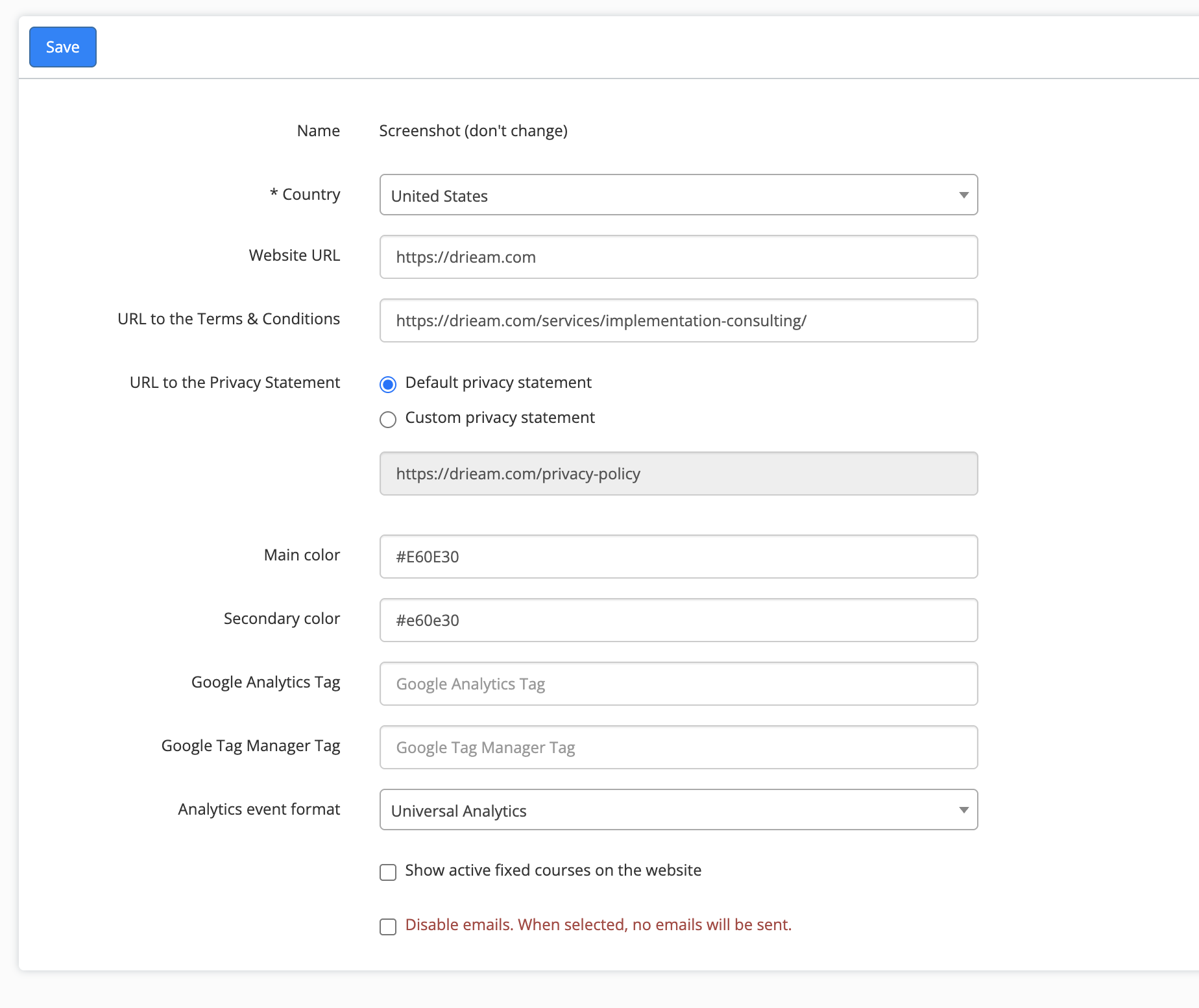

Click here for other Articles around the Settings page in Eduframe

Click here if you have any questions for support.